
How to Properly Restart Your Windows PC
Many common computer problems can be resolved by performing a proper restart. This guide explains how to restart your Windows PC correctly before further troubleshooting.
Before we investigate a problem with your PC, we may ask you to perform a full restart.
A proper restart can resolve many temporary problems caused by Windows updates, cached information, background applications or services that have stopped responding correctly.
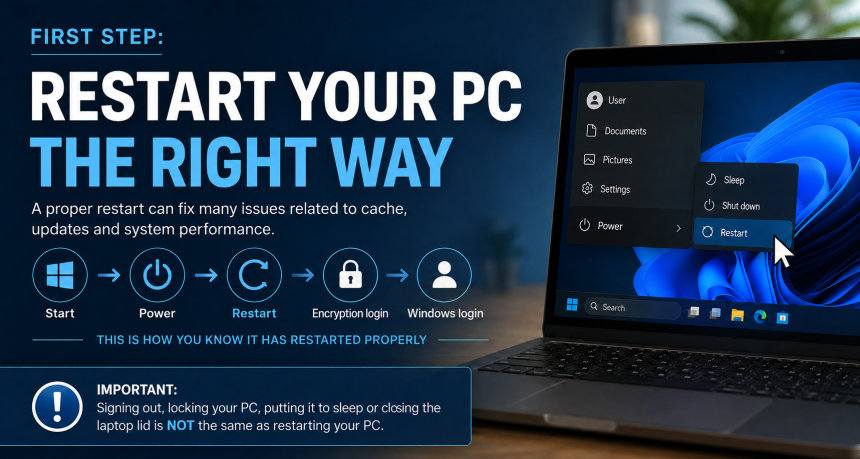
Importantly, signing out and back in, locking the computer, putting it to sleep, or closing the laptop lid is not the same as restarting it.
Please Try a Restart First
If you are experiencing an issue with your PC, before contacting Fox Technologies — or if we have asked you to restart the computer as part of troubleshooting — please use the following method.
Step 1 — Save Your Work
Before restarting, save any documents or other work you currently have open.
Close any applications where possible.
Step 2 — Open the Windows Start Menu
Click the Windows Start button on the taskbar.
This is normally the Windows logo at the bottom of your screen.
Step 3 — Select Power
Click the Power button within the Start menu.
You should see several options, which may include:
- Sleep
- Shut down
- Restart
Step 4 — Select Restart
Click Restart.
Please make sure you select Restart — not Sleep and not Sign out.
Windows will close, the computer will restart and you will then be taken through the normal startup process.
How Do I Know It Has Restarted Properly?
On Fox Technologies-managed computers using pre-boot drive encryption, one of the easiest ways to tell that the machine has genuinely restarted is that you should be asked to authenticate with the encryption login during startup.
If you simply return immediately to your normal Windows login screen without seeing the expected encryption startup screen, the computer may only have been locked, signed out or put to sleep rather than fully restarted.
A Proper Restart Should Look Like This
Windows Start → Power → Restart → Computer restarts → Encryption login → Windows login
That complete process confirms that the computer has gone through a proper restart.
What Does Not Count as a Restart?
The following actions do not replace a proper restart:
Signing out
This signs your Windows account out but leaves Windows itself running.
Locking the PC
This simply locks your current session.
Closing the laptop lid
In most configurations this puts the laptop into a low-power or sleep state.
Selecting Sleep
Your current Windows session remains stored so that you can quickly continue where you left off.
Turning the screen off
The computer itself may still be running normally in the background.
When troubleshooting, we specifically want you to select Restart.
Why Can Restarting Help?
Modern computers can remain running for long periods without ever completing a full restart.
During that time Windows, applications and background services can accumulate temporary information and occasionally encounter problems.
Restarting gives Windows an opportunity to reload the operating system and its services cleanly. It can also allow pending Windows updates or application updates to complete.
For this reason, a restart is one of the quickest and safest troubleshooting steps to try before more detailed investigation.
Quick Checklist
Before reporting the problem, please check:
- Save your work.
- Click Start.
- Click Power.
- Select Restart.
- Allow the computer to restart completely.
- Enter your encryption credentials when prompted.
- Log back into Windows.
- Try the application or feature again.
If the problem is still present after the restart, please contact Fox Technologies and let us know that a full restart has already been completed.
This helps us move straight on to the next stage of troubleshooting.
Key Takeaway
Sign out, Sleep and closing the laptop lid are not a restart.
When we ask you to restart your PC, please always use:
Start → Power → Restart
and allow the computer to complete its full startup process before testing the problem again.
Fox Technologies — Customer Help & Support
The screens and options shown may vary slightly depending on your version of Windows and the security configuration applied to your computer.