
Support Team 9 months ago
SupportTeam #office-365

Remove misspelled or no longer required email addresses from the Outlook auto complete selection

Outlook auto complete selection

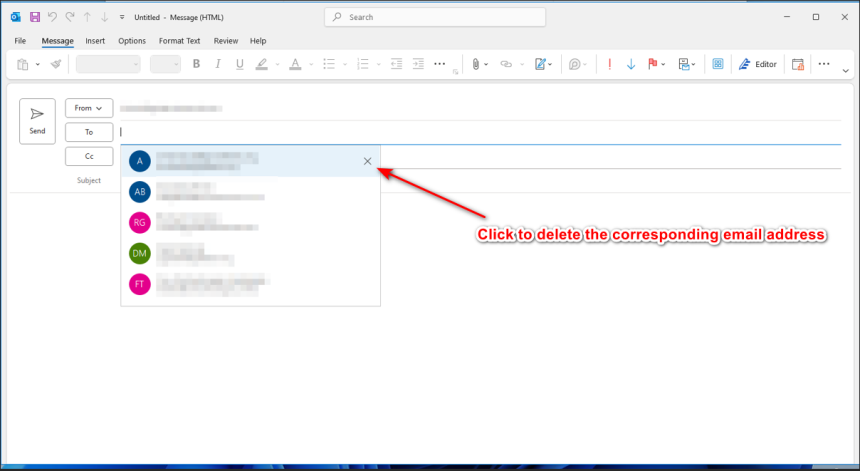
If you have an incorrect email address or one you wish to remove from the auto-complete function in the "To" field in Outlook, you can delete it by following these steps:


  1. Open a new email.
  2. Click into the To: field and start typing the email address until it appears in the auto-complete list.
  3. Click the small delete button on the top right-hand side.
  4. The email address will no longer appear in the auto-complete list.
  5. Once you enter the correct email address, Outlook will store it for future use.


Please see the screenshot below.
0
455
Reset or change your Hello PIN

Reset or change your Hello PIN

1738943233.png
Support Team
7 months ago
Best Practices for Collaborative Document Editing:

Best Practices for Collaborative Document Editing:

1738943233.png
Support Team
9 months ago
Best Practices for Laptop Battery Health: Should You Keep It Plugged In?

Best Practices for Laptop Battery Health: Should You Keep It Plugged I...

1738943233.png
Support Team
9 months ago
How to Add the "From" Field in Outlook When Sending from a Shared Mailbox

How to Add the "From" Field in Outlook When Sending from a Shared Mail...

1738943233.png
Support Team
4 months ago
Release quarantined e-mail for shared account for Barracuda e-mail protection system

Release quarantined e-mail for shared account for Barracuda e-mail pro...

1738943233.png
Support Team
6 months ago