
How to Release a Quarantined Email from Your Personal Mailbox Using the Barracuda Email Protection Portal
Step 1: Locate the Quarantine Notification in Outlook
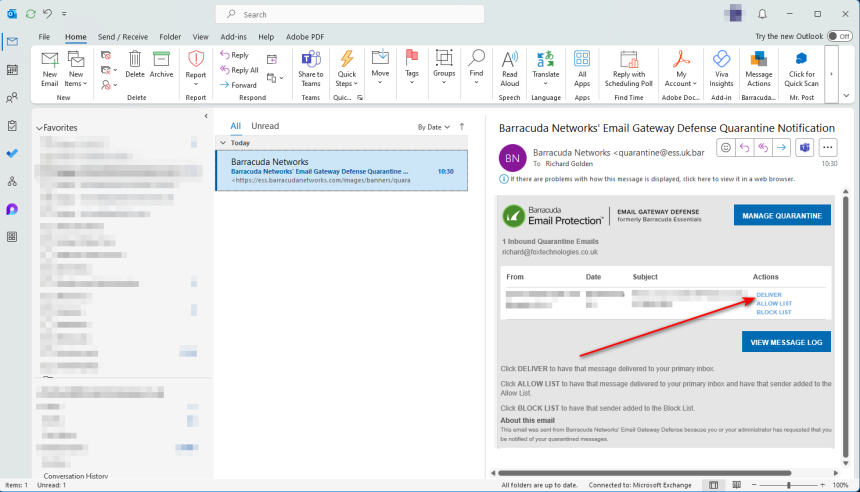
Open the Barracuda quarantine notification email in your Outlook client. In the preview pane on the right-hand side, you will see the quarantined email along with three available action buttons. Click “Deliver”.
Step 2: Sign in via Microsoft
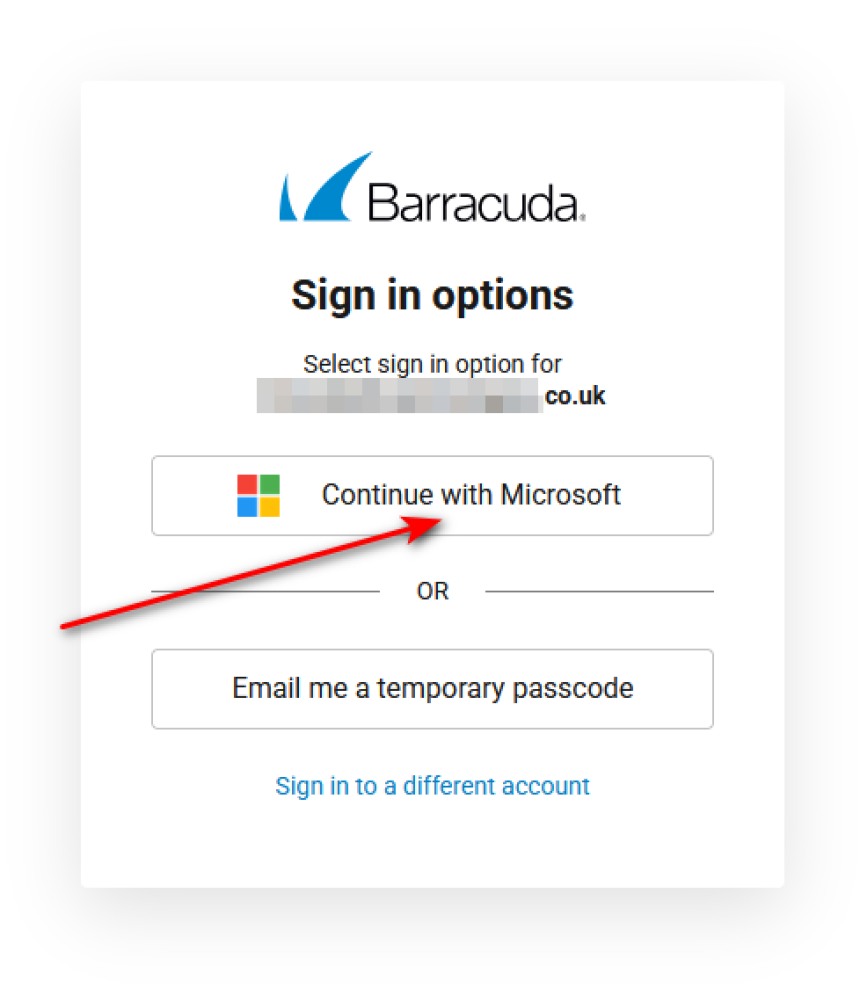
Clicking the “Deliver” button will open a browser window with the Barracuda login prompt. On this screen, select “Continue with Microsoft” (as shown in the image, if provided).
Step 3: Authenticate with Microsoft 365
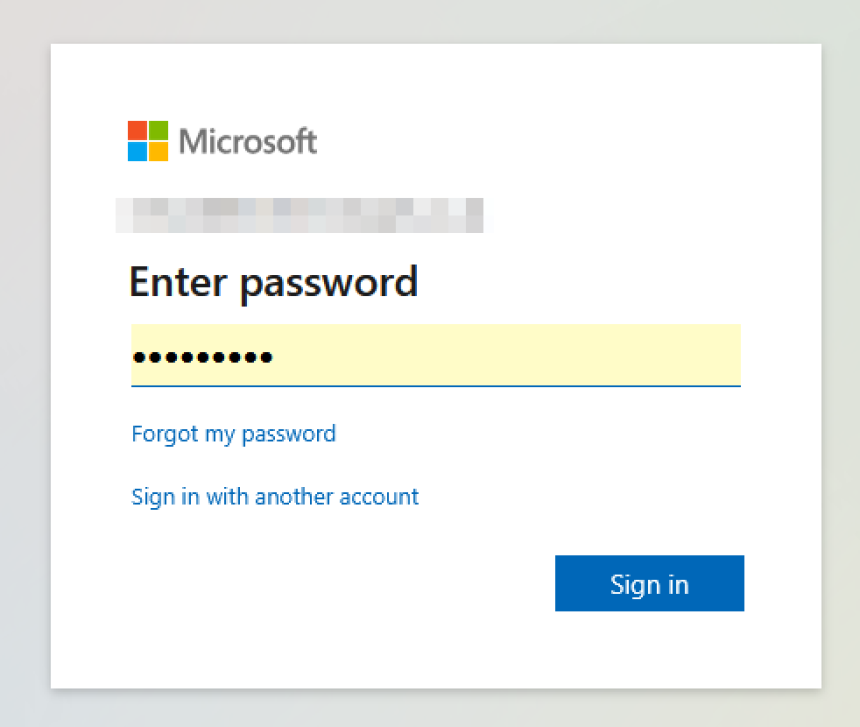
A Microsoft login window will appear. Sign in using your Microsoft 365 credentials. If prompted, complete the sign-in using your two-factor authentication method. This will grant access to the Barracuda quarantine portal.
Step 4: Deliver the Quarantined Email
Once inside the portal:
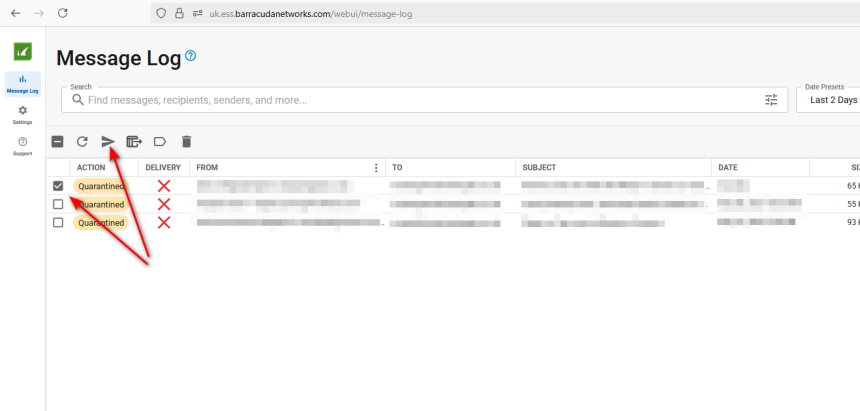
- Locate the quarantined email(s) you wish to release.
- Select the corresponding checkbox next to each message.
- Click the “Deliver” icon (third from the left on the top menu bar).
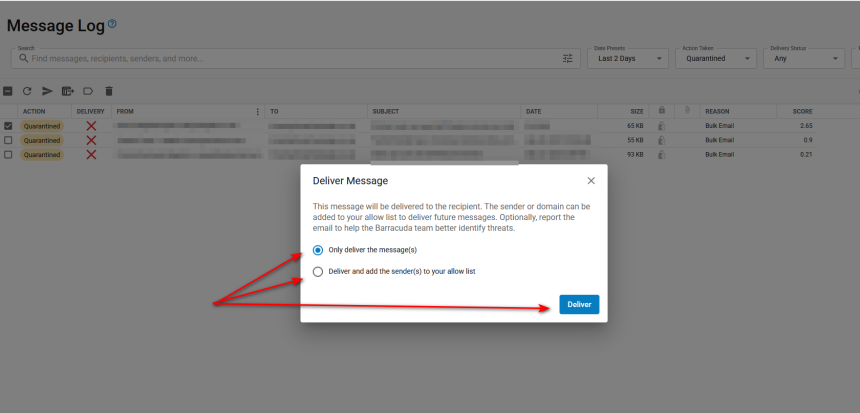
After clicking the Deliver icon, a confirmation window will appear asking whether you want to:
- Add the sender or domain to your Safe Senders List (to prevent future quarantines), or
- Deliver the email this one time while keeping current quarantine rules in place.
Choose the desired option to proceed.
Final Notes
Emails are typically delivered within a few minutes. If you do not receive the email, double-check that each step was followed correctly. For ongoing issues, please contact your IT support using your preferred method.