
Support Team
1 year ago
SupportTeam
#office-365
Create & Edit a contact in Outlook Desktop App
To add or edit a contact in your Outlook app address book, please follow the steps below:
Step 1:
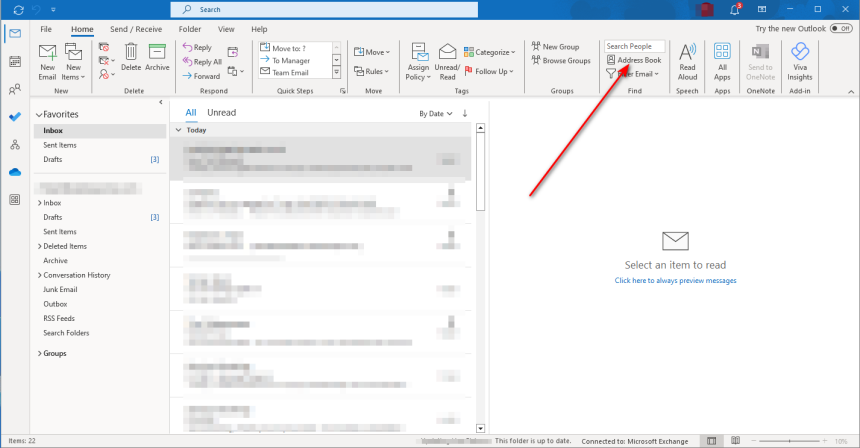
Open Outlook. On the top ribbon, locate the Contacts area and click the Address Book button to expand the Contacts window.
Step 2:
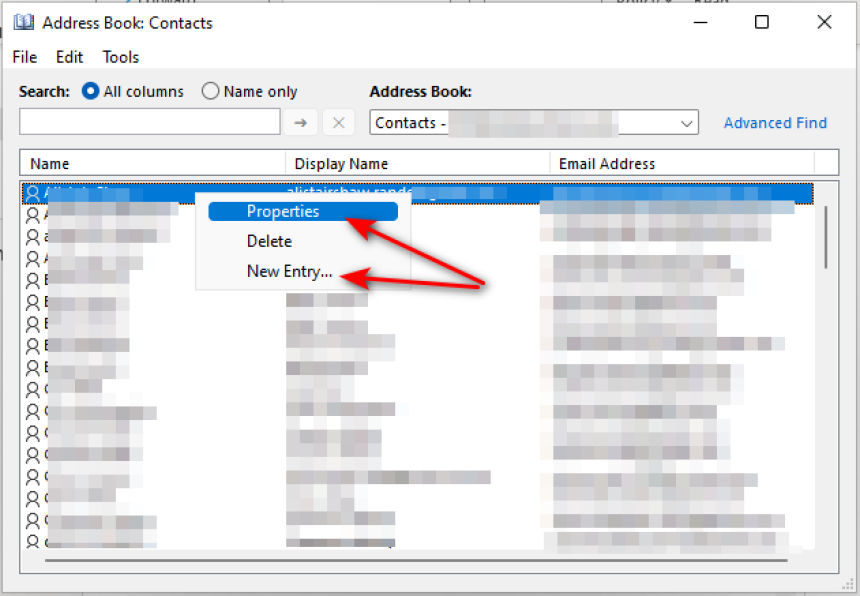
From the top of the Address Book window, select the desired address book from the dropdown list.
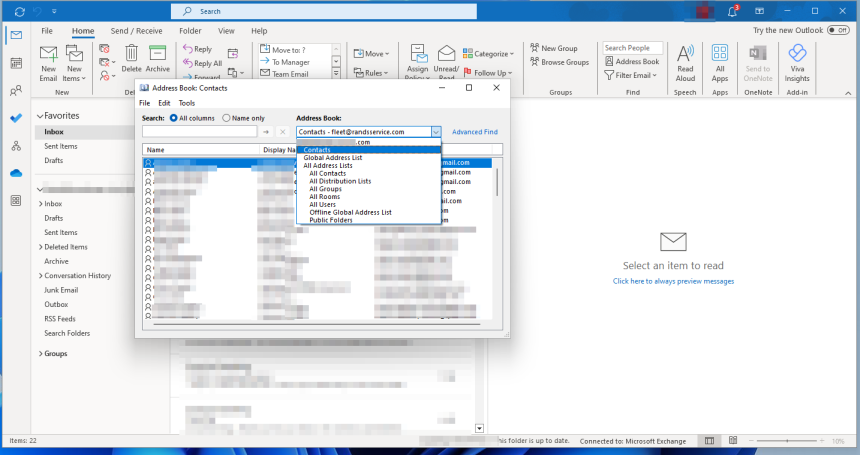
Step 3:
Once selected, the contacts will appear in the left-hand pane of the Address Book window.
- To edit an existing contact: Select the contact's name, click the right-hand mouse button, then select properties to open their index card, then make the necessary changes, and save.
- To add a new contact: Right-click anywhere in the left-hand pane and select New Entry. Fill in the details in the new index card that appears.
Once completed, the new or updated contact will be available for use when sending emails through the Outlook address book.