
Searching the Microsoft In-Place Archive in Outlook
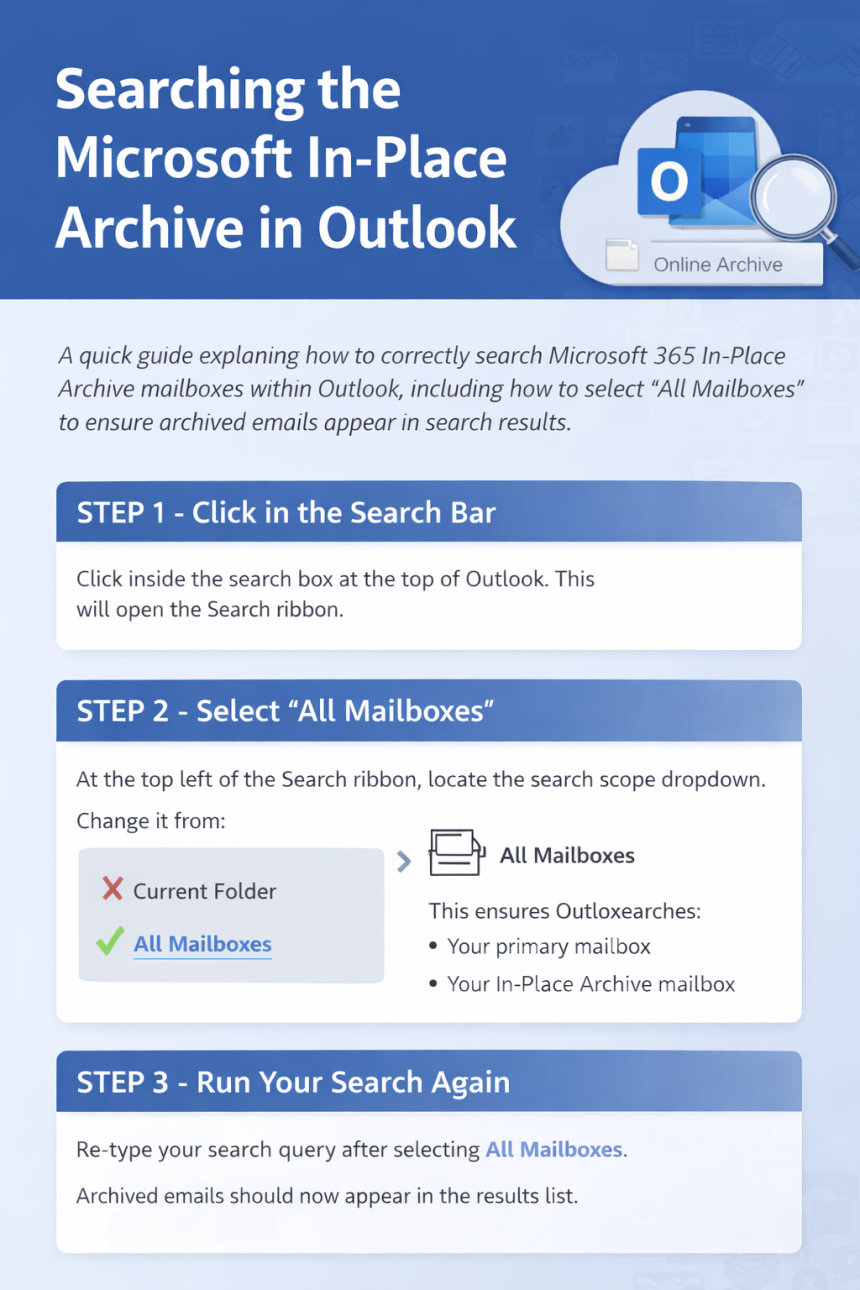
A quick guide explaining how to correctly search Microsoft 365 In-Place Archive mailboxes within Outlook, including how to select “All Mailboxes” to ensure archived emails appear in search results.
 Searching the In-Place Archive in Outlook
Why emails sometimes appear to be “missing”
If you are using Microsoft Outlook with an In-Place Archive enabled, archived emails remain fully searchable within Outlook.
However, Outlook will only search the archive if you select the correct search scope.
If the search scope is set to Current Folder, Outlook will not search your archive mailbox — and archived emails will not appear in results.
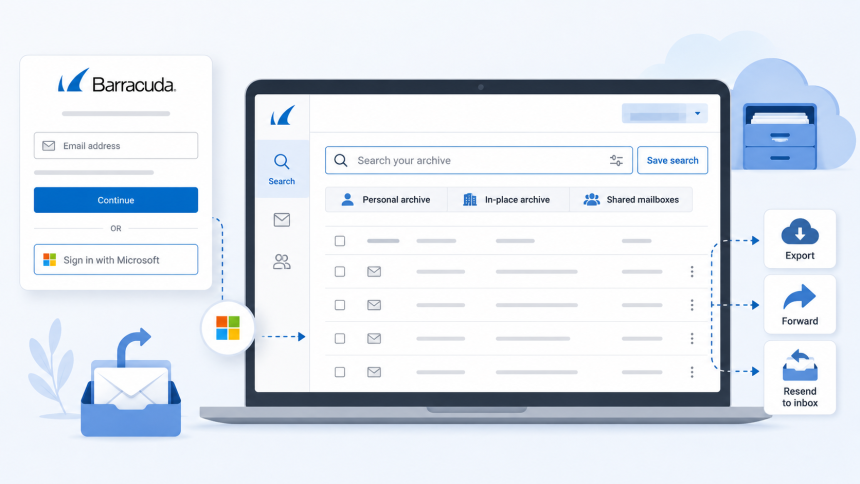
This can create confusion and lead to the assumption that the email has moved to Barracuda.
There are two separate systems:
1️⃣ Microsoft In-Place Archive (Searchable in Outlook)- Part of Microsoft 365
- Appears in Outlook as an additional mailbox
- Fully searchable — if the correct search option is selected
- Separate system
- Used for secure long-term retention and compliance
- Not automatically searched by Outlook
If an email has moved to your Microsoft In-Place Archive, it is still inside Outlook and still searchable.
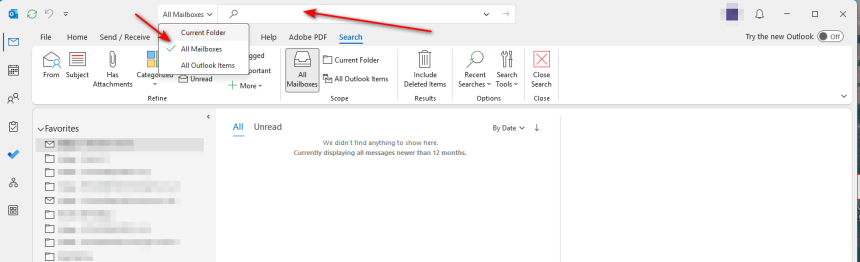
Click inside the search box at the top of Outlook.
This will open the Search ribbon.
At the top left of the Search ribbon, locate the search scope dropdown.
Change it from:
- ❌ Current Folder
- to
- ✅ All Mailboxes
This ensures Outlook searches:
- Your primary mailbox
- Your In-Place Archive mailbox
Re-type your search query after selecting All Mailboxes.
Archived emails should now appear in the results list.
When results appear:
- Emails stored in the archive will show under your Online Archive mailbox.
- They may appear grouped separately from your main Inbox results.
- They are still accessible and can be opened normally.
If Outlook is set to:
- Current Folder
- Subfolders
- Or All Outlook Items (depending on configuration)
…it may not include your archive mailbox.
Always use All Mailboxes when searching for older emails.
Barracuda is used for:
- Long-term secure retention
- Compliance storage
- Historical evidence preservation
Barracuda is not the first place to check if a recent email cannot be found.
Most “missing” emails are simply in the Microsoft In-Place Archive and can be located by adjusting the search scope.
Before reporting a missing email:
☐ Click in the search bar
☐ Select All Mailboxes
☐ Re-run the search
☐ Check results under your Online Archive